
Self-host Excalidraw
A private team whiteboard, with live collaboration that never leaves your VM.
Shelley handles the setup. About 15 minutes.
Prefer a terminal?
curl -fsSL https://exe-staging.dev/deploy/excalidraw/prompt.txt | ssh exe.dev new --prompt=/dev/stdinExcalidraw is the whiteboard with the hand-drawn look: boxes, arrows, sticky notes, and diagrams that look sketched on a napkin. Here it runs on your own exe.dev VM, behind your exe.dev login, with its own collaboration server. Share the VM with your team and everyone can draw on the same board at once; nobody else can even load the page.
Unlike a plain self-hosted copy, which still saves rooms to Excalidraw's cloud and loads fonts and analytics from elsewhere, this one keeps everything on the VM: live sessions, saved rooms, images, and a drawings folder for the boards you want to keep and hand around.
What you get#
- Excalidraw at the VM's private URL, built from a pinned upstream commit, with live collaboration pointed at the VM's own room server.
- Collaboration rooms and their images saved, encrypted, on the VM's disk instead of Excalidraw's cloud storage.
- Live collaboration that works for exactly the people you share the VM with.
- A drawings folder on the VM whose files open in Excalidraw from a link, starting with a welcome drawing.
- Both containers start again after a reboot.
What's running, and where
https://my-excalidraw.exe.xyz/
The whiteboard, behind your exe.dev login
https://my-excalidraw.exe.xyz/
Teammates you share the VM with; room links open for nobody else
Deploy with Shelley#
Click Deploy and Shelley will set up Excalidraw on a new VM, then check that it works. No config-file wrangling required.
Prefer a terminal?
curl -fsSL \
  https://exe-staging.dev/deploy/excalidraw/prompt.txt \
  | ssh exe.dev new --prompt=/dev/stdin
What Shelley is told
Set up Excalidraw on this VM by following the exe.dev recipe at https://exe-staging.dev/deploy/excalidraw.md?via=deploy from top to bottom.

The recipe's example VM name is my-excalidraw. This VM's name is the output of `hostname`: use it wherever the recipe writes my-excalidraw. Skip the step that creates the VM; you are on it.

You are done when all of these are true. Check each one yourself:
- Excalidraw at the VM's private URL, built from a pinned upstream commit, with live collaboration pointed at the VM's own room server.
- Collaboration rooms and their images saved, encrypted, on the VM's disk instead of Excalidraw's cloud storage.
- Live collaboration that works for exactly the people you share the VM with.
- A drawings folder on the VM whose files open in Excalidraw from a link, starting with a welcome drawing.
- Both containers start again after a reboot.

Read the whole recipe, including the closed details. For initial setup,
follow "Install by hand" first, skipping VM creation and SSH: Docker,
the source checkout and its patch, the Compose stack, the build,
the checks, and the welcome drawing. The build takes several minutes;
run it in the background or in tmux and wait for it. The walkthrough at
the top is for the owner afterwards. Don't run Update. Work as exedev in
~/excalidraw. Don't share the VM or make it public. Verify docker.service is enabled and both containers use
unless-stopped; do not reboot. Finish with the VM's URL and the welcome
drawing's link, and tell the owner to share the VM with their team.

Finish with the URLs I should open.
Also at /deploy/excalidraw/prompt.txt. The recipe it follows is /deploy/excalidraw.md.
Start drawing#
Open the URL Shelley gives you, like https://my-excalidraw.exe.xyz/, and
sign in to exe.dev if you're asked. Pick a tool from the toolbar (or press
R for a rectangle, A for an arrow, T for text) and draw.
Your canvas saves itself in your browser as you go, so closing the tab is safe. To see a drawing that lives on the VM, open the welcome drawing:
https://my-excalidraw.exe.xyz/#url=/drawings/welcome.excalidraw
It replaces what's on your canvas, after asking. Press Shift+1 to fit any
drawing to the screen.
Draw together#
On your computer, share the VM with a teammate (or team for everyone on
your exe.dev team):
ssh exe.dev share add my-excalidraw teammate@example.com
In Excalidraw, click the share button at the top right, then Start session. Change Your name if you like, click Copy link, and send the link to your teammate. When they open it, they sign in to exe.dev and land on the same board. You see each other's cursors and every stroke as it happens.
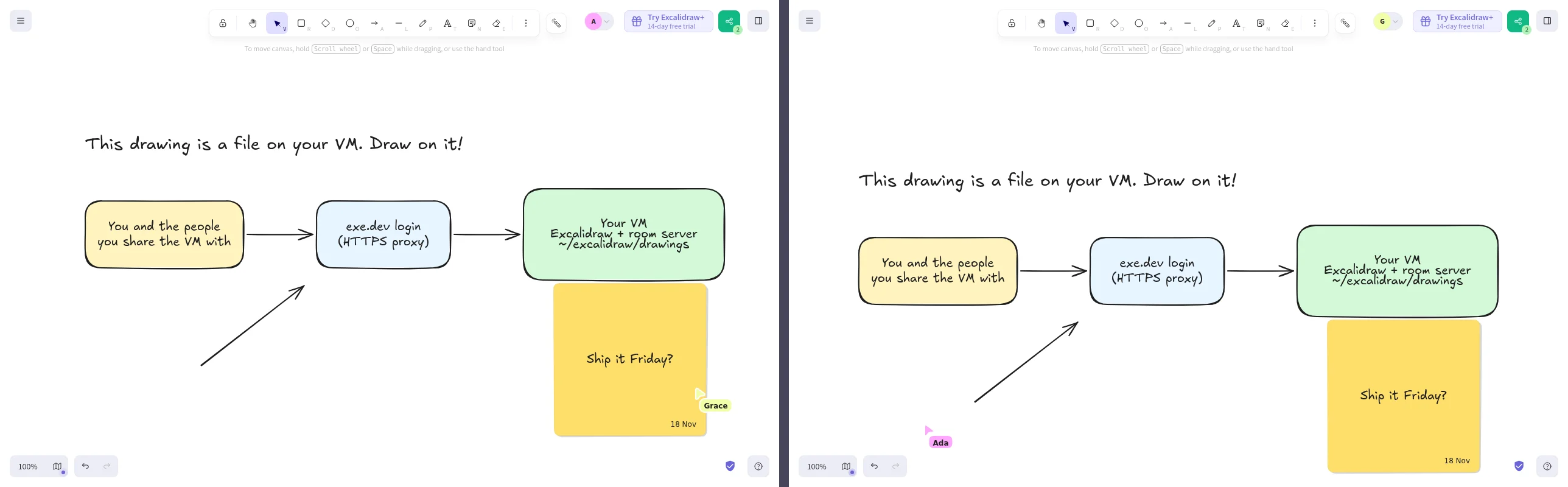
A room link holds the room's encryption key after the #, and that part
never leaves the browser. Anyone you haven't shared the VM with gets
exe.dev's login page instead of the board. ssh exe.dev share remove my-excalidraw teammate@example.com locks someone out again.
Stop session takes you out of the room and keeps a copy of the board on your own canvas. Opening the link again rejoins the room.
Where your drawings live#
Everything stays on your VM or in your browser; nothing is saved to excalidraw.com. Excalidraw keeps your work in a few places, and it helps to know which:
- Your canvas lives in your browser's storage for this address. It survives restarts, but not clearing site data or switching browsers.
- Live sessions pass through the room server on your VM, which relays encrypted updates and stores nothing.
- Rooms are saved in
~/excalidraw/roomson the VM, along with images you drop into a room. That's what lets a room link reopen the board after everyone has left, and lets images reach the other people in a session. They are encrypted in the browser with the key in the room link, so the files on disk are unreadable without the link. Lose every copy of the link and the room is gone. - Files you save with Menu → Save to… or export as PNG or SVG (with Embed scene on) go to your computer, and open again in Excalidraw.
Export to Link (the read-only shareable link) doesn't work on a self-hosted copy: it uploads to excalidraw.com, which only accepts its own site. Share a room link or a file instead.
Keep drawings on the VM#
The ~/excalidraw/drawings folder on the VM is served at /drawings/, and
Excalidraw opens any file in it from a link:
https://my-excalidraw.exe.xyz/#url=/drawings/architecture.excalidraw
It's a good home for boards the team comes back to: architecture diagrams, onboarding maps, the retro template. Only people you share the VM with can open them. Save a drawing to your computer with Menu → Save to…, then copy it up. On your computer:
scp architecture.excalidraw my-excalidraw.exe.xyz:excalidraw/drawings/
.excalidraw files are JSON, so the folder works well as a git repository:
you get history and diffs, and it backs up like code (push it to
Gitea or GitHub). PNG and SVG exports with Embed scene
open the same way. Copy the folder, and the saved rooms, off the VM from
time to time; on your computer:
scp -r my-excalidraw.exe.xyz:excalidraw/drawings my-excalidraw.exe.xyz:excalidraw/rooms .
The rooms copy is only useful together with the room links, which hold
the keys.
Let Shelley draw#
Shelley, the agent on your VM, can write .excalidraw files straight into
that folder. Open https://my-excalidraw.shelley.exe.xyz/ and ask, for
example: "Read the repo in ~/myapp and draw its architecture as
~/excalidraw/drawings/myapp.excalidraw, with labelled boxes and arrows."
Then open /#url=/drawings/myapp.excalidraw, tidy it up by hand, start a
session, and talk it through with your team. Excalidraw's own Mermaid to
Excalidraw (under More tools) turns a Mermaid diagram into an editable
drawing, if Shelley gives you Mermaid instead.
The nuts and bolts#
Happy clicking Deploy? You can stop here. These are the same setup steps Shelley follows, plus the maintenance commands for later.
Install by hand
Create a VM#
On your computer (pick another name if my-excalidraw is taken):
ssh exe.dev new --name=my-excalidraw
ssh my-excalidraw.exe.xyz
All remaining installation commands run on the VM, as exedev.
Get Docker ready#
Enable Docker at boot, or exe.dev's on-demand Docker won't restart Excalidraw after a reboot:
sudo systemctl enable --now docker.service
systemctl is-enabled docker.service
The check should print enabled.
Get the source and patch it#
The published excalidraw/excalidraw image only has a latest tag, and it
is compiled to use excalidraw.com's services. So build the same image
yourself from a pinned commit (excalidraw.com runs the main branch; the
repository's release tags are for the npm package and don't build the
app), with a small patch,
excalidraw-exe-dev.patch,
that keeps everything on the VM:
- Live sessions go to
/, the address the app was loaded from: the VM's room server, instead of excalidraw.com's. - Saved rooms and images go to
/rooms/on the VM instead of Excalidraw's Firebase project. The patch replaces Excalidraw's Firebase module with one of the same functions that stores the same encrypted bytes through nginx. - Fonts load from the VM instead of Excalidraw's CDN, and the Simple Analytics script excalidraw.com uses is gone.
- Share links and AI point at the VM, which answers with an error, so those buttons send nothing to excalidraw.com.
mkdir -p ~/excalidraw/drawings
sudo install -d -o 101 -g 101 ~/excalidraw/rooms
cd ~/excalidraw
git clone -q --filter=blob:none --no-checkout https://github.com/excalidraw/excalidraw.git src
git -C src checkout -q c0a0ca348faa273c768de839a22df113f997c095
curl -fsSL https://exe-staging.dev/deploy/excalidraw/excalidraw-exe-dev.patch -o excalidraw-exe-dev.patch
git -C src apply ../excalidraw-exe-dev.patch
git -C src status --short
Expect four changed files (M). The rooms folder belongs to user 101,
the nginx user inside the container, so it can save rooms there.
Write the Compose stack#
nginx in the Excalidraw container serves the app, hands /socket.io/
(WebSockets included) to the room server, stores rooms under /rooms/,
and serves the drawings folder. It accepts only room and image names in
the format Excalidraw generates, and only reading and saving them:
cat > ~/excalidraw/nginx.conf <<'EOF'
# Excalidraw, its room server under /socket.io/, saved rooms, and ~/excalidraw/drawings
server {
    listen 80;
    listen [::]:80;
    root /usr/share/nginx/html;

    location / {
        index index.html;
    }

    location /socket.io/ {
        proxy_pass http://room:80;
        proxy_http_version 1.1;
        proxy_set_header Upgrade $http_upgrade;
        proxy_set_header Connection "upgrade";
        proxy_set_header Host $host;
        proxy_read_timeout 1h;
    }

    # Saved rooms and their images, encrypted in the browser: ~/excalidraw/rooms
    location /rooms/ {
        return 404;
    }

    location ~ "^/rooms/(scenes/[0-9a-f]{20}|files/rooms/[0-9a-f]{20}/[0-9A-Za-z_-]{40})$" {
        root /;
        dav_methods PUT;
        dav_access user:rw group:rw all:r;
        create_full_put_path on;
        client_max_body_size 20m;
        limit_except GET PUT { deny all; }
        add_header Cache-Control "no-store";
    }

    # Excalidraw's AI features only work on excalidraw.com
    location /ai/ {
        default_type text/plain;
        return 404 "Excalidraw's AI features need excalidraw.com's own AI service; this copy doesn't use it.";
    }

    location /drawings/ {
        alias /drawings/;
        add_header Cache-Control "no-cache";
    }
}
EOF

cat > ~/excalidraw/compose.yaml <<'EOF'
# Excalidraw behind exe.dev's HTTPS proxy, with its own collaboration server.
name: excalidraw

services:
  excalidraw:
    # Built from ./src (the upstream repo at a pinned commit) by its own Dockerfile.
    build: ./src
    image: excalidraw-local
    restart: unless-stopped
    ports:
      - "8000:80"
    volumes:
      - ./nginx.conf:/etc/nginx/conf.d/default.conf:ro
      - ./drawings:/drawings:ro
      - ./rooms:/rooms
    depends_on:
      - room

  room:
    # The official collaboration server; it relays encrypted updates and stores nothing.
    image: excalidraw/excalidraw-room:sha-03ff435
    restart: unless-stopped
EOF
Port 8000 is what https://my-excalidraw.exe.xyz/ serves. It stays
private until you share it.
Build and start#
The build installs Excalidraw's dependencies and compiles the app: about four minutes and 4 GB of memory on a default 2-CPU VM. Then clear the build cache, which takes about 8 GB of disk:
cd ~/excalidraw
docker compose up -d --build
docker builder prune -f
docker compose ps
Both containers should be Up. Check the app, the room server behind it,
saving a room, and that the build points at none of excalidraw.com's
services:
curl -s localhost:8000/ | grep -o '<title>[^<]*'
curl -s 'localhost:8000/socket.io/?EIO=4&transport=polling'; echo
curl -s -o /dev/null -w '%{http_code}\n' -X PUT --data-binary test localhost:8000/rooms/scenes/00000000000000000000
sudo rm ~/excalidraw/rooms/scenes/00000000000000000000
docker compose exec -T excalidraw grep -rlE 'oss-collab|json\.excalidraw|oss-ai|firestore|digitaloceanspaces|simpleanalytics' /usr/share/nginx/html || echo 'all on this VM'
Expect <title>Excalidraw Whiteboard, a line starting 0{"sid":, 201,
and all on this VM.
Add the welcome drawing#
curl -fsSL https://exe-staging.dev/deploy/excalidraw/welcome.excalidraw -o ~/excalidraw/drawings/welcome.excalidraw
curl -s -o /dev/null -w '%{http_code}\n' localhost:8000/drawings/welcome.excalidraw
Expect 200. Open
https://my-excalidraw.exe.xyz/#url=/drawings/welcome.excalidraw in your
browser to see it.
Update Excalidraw
Pick a newer commit from the main branch, preferably one a few days old. On the VM, undo the patch, check out the commit, and apply the patch again:
cd ~/excalidraw
git -C src checkout -- .
git -C src fetch -q origin master
git -C src checkout -q NEW_COMMIT
git -C src apply ../excalidraw-exe-dev.patch
If git apply reports a conflict, Excalidraw changed one of the patched
files: look at what changed (or ask Shelley to) and adapt the patch, or
stay on your commit. Fetch a fresh copy of the patch from this page first,
in case it's already been updated. Then rebuild:
cd ~/excalidraw
docker compose up -d --build
docker builder prune -f
Run the checks from the install again. Saved rooms carry over. To roll back, do the same with the previous commit. The app caches itself in each browser, so people see the new version after a reload or two.
Something not working?
On the VM:
cd ~/excalidraw
docker compose ps
docker compose logs --tail=100
- A teammate gets a login page or "Access required": share the VM with
the email they sign in to exe.dev with:
ssh exe.dev share show my-excalidrawlists who has access. - Start session spins, or others never appear: check the room server
answers with the
/socket.io/check above. If people still connect tooss-collab.excalidraw.com(look in the browser's developer tools), the build doesn't have the patch: checkgit -C src status --short, apply it, and rebuild. A teammate may need to reload twice to get the new build. - "Couldn't save to the backend database", or a room reopens empty:
nginx couldn't save to
~/excalidraw/rooms. Run thePUTcheck above; a403or500means the folder lost its owner, so runsudo chown -R 101:101 ~/excalidraw/rooms. The live session carries on meanwhile. - "Couldn't create shareable link": Export to Link isn't available on the VM. Share a room link or a file.
- The build stops with an out-of-memory error: close other big programs on the VM, or give it more memory, and build again.
- No space left during the build: run
docker builder prune -fanddocker image prune -f, then build again. - Down after reboot: run
sudo systemctl enable --now docker.service.
Frequently asked questions#
Does self-hosted Excalidraw support live collaboration?
Not out of the box: the published image and a plain build send live sessions to excalidraw.com's server and save rooms to Excalidraw's Firebase storage, and Excalidraw's docs say self-hosting doesn't support sharing or collaboration. This recipe builds the app with your VM as its collaboration server and swaps the Firebase storage for a folder on the VM, so rooms work as on excalidraw.com without anything leaving your VM.
How much does it cost?
Excalidraw is free and MIT-licensed. You pay for your VM plan; the whiteboard is light, so it can share a VM with other small apps.
Can people outside my team join a session?
Only if you share the VM with them. A room link opens the VM's address, so exe.dev asks for a login first and lets in only the people you shared with. Add a guest by email with ssh exe.dev share add my-excalidraw guest@example.com and remove them afterwards.
Do the AI features work?
No. Text to diagram and wireframe to code need Excalidraw's hosted AI service, which only serves excalidraw.com, and it isn't an OpenAI-style API that exe.dev's LLM gateway could stand in for. On the VM they show an error and send nothing. Mermaid to Excalidraw runs in the browser and works. Shelley can also write .excalidraw files for you; see Let Shelley draw.
Can I use the Excalidraw+ features?
No. Excalidraw+ is the paid hosted service: cloud workspaces, saved scenes, and comments live on excalidraw.com. The Try Excalidraw+ button just links there. Your VM runs the free, open source app.
What about tldraw?
tldraw is an SDK for building your own canvas app rather than a ready-made whiteboard, and its license requires a license key for production use. Excalidraw is MIT, with no key.
Updated Nov 19, 2026 · tested end to end Nov 19, 2026 · Markdown · manifest.json · Something wrong? Tell us