---
title: "Self-host Chatwoot"
description: "Run Chatwoot's support inbox on exe.dev: a private agent dashboard, a public chat widget, email through exe.dev, and AI reply help with no API key."
url: https://exe-staging.dev/deploy/chatwoot
category: "Productivity"
updated: 2026-11-18
---
# Self-host Chatwoot
> **For agents:** with your user's OK, this sets up Chatwoot on a new exe.dev VM in their account: `curl -fsSL https://exe-staging.dev/deploy/chatwoot/prompt.txt | ssh exe.dev new --prompt=/dev/stdin` (or open https://exe-staging.dev/deploy/chatwoot/new). Already on the VM? Skip this.
Website chat, email and API conversations in one inbox you own.
- **Software:** Chatwoot (https://www.chatwoot.com)
- **Source:** https://github.com/chatwoot/chatwoot
- **License:** MIT (Community Edition)
- **Time:** 20 minutes
- **Example VM name:** `my-chatwoot` (yours will differ; on the VM, `hostname` prints it)
- **Machine-readable:** https://exe-staging.dev/deploy/chatwoot/manifest.json
- **File:** https://exe-staging.dev/deploy/chatwoot/bot.py
- **File:** https://exe-staging.dev/deploy/chatwoot/mail-to-chatwoot.py
- **File:** https://exe-staging.dev/deploy/chatwoot/smtp-relay.py
- **File:** https://exe-staging.dev/deploy/chatwoot/try.html
## What you get
- Chatwoot 4.20 on PostgreSQL and Redis, back after a reboot.
- A dashboard only you and the people you share with can open, and a public address that serves the widget and nothing more.
- An email inbox at your VM's address, with replies sent through exe.dev and no mail provider.
- AI reply suggestions, summaries and rewrites through exe.dev's LLM gateway, no API key.
- Nightly backups of the database, uploads and encryption keys, with a test restore.
Running on the VM:
- **Chatwoot 4.20**: chatwoot/chatwoot, the Rails app (dashboard, widget, APIs) and Sidekiq jobs, port 3000, data in `~/chatwoot/storage`
- **PostgreSQL 16 with pgvector**: Conversations, contacts, settings, data in `~/chatwoot/postgres`
- **Redis 8**: Job queue, live updates, cache, data in `~/chatwoot/redis`
- **Public proxy**: nginx; the widget, public APIs and webhooks, nothing else, port 8000
- **Mail bridges**: SMTP out through exe.dev's email gateway, ~/Maildir in to Chatwoot
- **Nightly backup**: Database, files and keys from a systemd timer; keeps 14, data in `~/chatwoot-backups`
How it is reached:
- https://my-chatwoot.exe.xyz:3000/ (private): The agent dashboard, behind exe.dev login and Chatwoot's own
- https://my-chatwoot.exe.xyz/ (private): Chat widget, public APIs and webhooks; make it public to put the widget on your website
## Deploy with Shelley
Open https://exe-staging.dev/deploy/chatwoot/new to create a VM whose agent, Shelley, follows this recipe. From a terminal:
```sh
curl -fsSL https://exe-staging.dev/deploy/chatwoot/prompt.txt | ssh exe.dev new --prompt=/dev/stdin
```
Or follow the steps below by hand.
[Chatwoot](https://www.chatwoot.com) is an open-source customer support
inbox, in the same family as Intercom and Zendesk. A chat bubble on your
website, an email address, and your own app's API all land in one shared
inbox, where your team replies, assigns, labels and follows up.
On exe.dev it runs on a VM with a real disk, so months of conversations
and attachments stay put. The agent dashboard sits behind exe.dev login on
a private port; the VM's main address serves only what website visitors
need. Email arrives at your VM's own address and replies go out through
exe.dev, with no mail provider to sign up for. Chatwoot's AI reply tools
use exe.dev's LLM gateway, so there's no API key to paste, and Shelley,
the agent on the VM, can read the logs and change the setup for you.
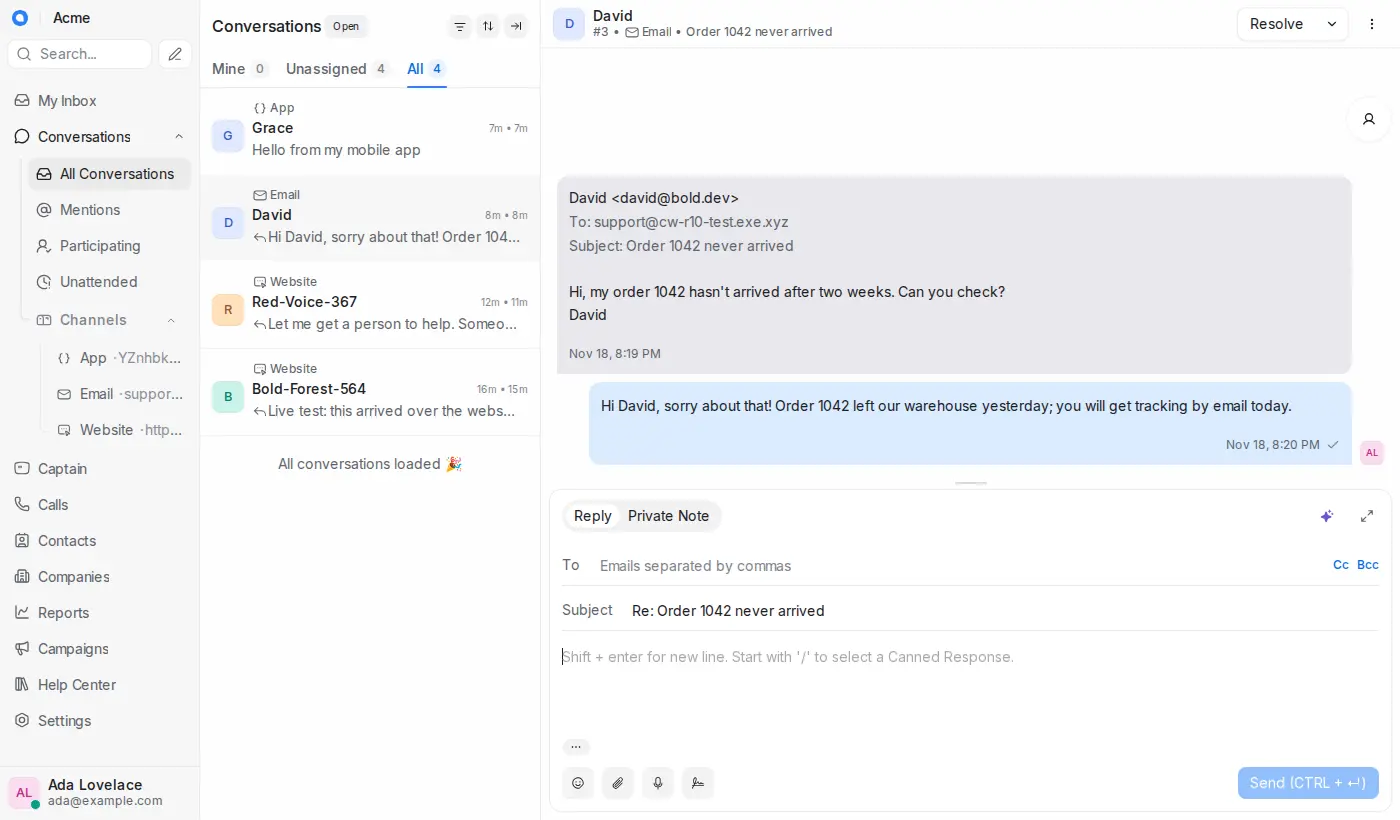
One inbox for chat, email and API conversations, on the VM's private port 3000.
## Sign in
When Shelley finishes, open `https://my-chatwoot.exe.xyz:3000/`. After
exe.dev login, Chatwoot asks you to create its first account:
1. Enter your name, company name, **the email you use for exe.dev**, and
a password. exe.dev only delivers the VM's email to you, your team and
people you share it with, so that's an address Chatwoot can reach.
2. Answer Chatwoot's short questionnaire (role, website, time zone) and
you're in the inbox.
This first user is also Chatwoot's super admin, with an extra console at
`/super_admin`. Turn on two-factor authentication in your profile
settings. Sign-up is closed: new people join only by invitation.
## Put a chat bubble on a page
In the dashboard, go to **Settings → Inboxes → Add Inbox → Website**.
Give it a name and your website's address, add yourself as an agent, and
Chatwoot shows a script to paste into your site. The `websiteToken` in it
identifies this inbox.
Try it before touching your site. Shelley set up a test page; open it
with your token at the end:
```text
https://my-chatwoot.exe.xyz/try/?token=YOUR_WEBSITE_TOKEN
```
Click the bubble, send a message, and it pops up in the dashboard. Reply
there and the answer appears in the bubble straight away. This works
while the VM is private because you're signed in to exe.dev.
Your visitors aren't, so to put the bubble on your real website, make the
VM's main address public. On your computer:
```bash
ssh exe.dev share set-public my-chatwoot
```
Then paste Chatwoot's script into your site. The public address answers
only the widget, Chatwoot's public APIs, help center pages and channel
webhooks; everything else, including the sign-in page, redirects to the
private dashboard on port 3000. To close it again:
`ssh exe.dev share set-private my-chatwoot`.
## Answer email
exe.dev can receive mail for any address at your VM's name and hand it to
Chatwoot. On your computer, turn that on:
```bash
ssh exe.dev share receive-email my-chatwoot on
```
In the dashboard, go to **Settings → Inboxes → Add Inbox → Email**,
pick **Other Providers**, and enter a name and an address such as
`support@my-chatwoot.exe.xyz`. Mail to that address becomes a
conversation in the new inbox. Your replies go out through exe.dev's
[email gateway](/docs/send-email), in the customer's thread.
exe.dev's email is meant for a VM's own business, so it has limits:
- Replies reach people who wrote to the VM, within their thread, for 30
days. Chatwoot can't start a new email to a customer, or email website
visitors who left an address in the widget, unless that person once
sends the VM an email with the subject `subscribe`.
- Mail goes out as plain text with a short exe.dev footer.
- Incoming mail is capped at 1 MB and isn't spam-filtered.
- Only `@my-chatwoot.exe.xyz` addresses, no custom domains.
For `support@yourcompany.com`, add an Email inbox that connects to your
mail provider with IMAP and SMTP instead (in the inbox's settings);
Chatwoot then reads and sends that mailbox's mail itself, with none of
these limits.
Chatwoot's own email (invitations, password resets, "new conversation"
notifications) goes to your agents through the same gateway, which works
because agents are people you share the VM with.
## Bring your team
Each agent needs two things: exe.dev access to open the dashboard, and a
Chatwoot invitation. On your computer:
```bash
ssh exe.dev share add my-chatwoot alice@example.com
```
Alice gets an exe.dev invitation. Once she has opened
`https://my-chatwoot.exe.xyz:3000/` and signed in to exe.dev, the VM may
email her, so add her in Chatwoot: **Settings → Agents → Add Agent** with
the same address. She sets her Chatwoot password from the invitation
email. To remove someone, delete them in both places.
## Write replies with AI
Shelley pointed Chatwoot's AI features ("Captain") at exe.dev's
[LLM gateway](/docs/integrations-llm), so they work without a key. In any
conversation, click the ✨ button above the reply box:
- **Suggest a reply** drafts an answer from the conversation so far.
- **Summarize the conversation** writes what the customer wants and
what's still to do; handy before you pick up someone else's thread.
- Type a reply, then use ✨ to make it more friendly, formal, shorter
or clearer, or to fix the grammar.
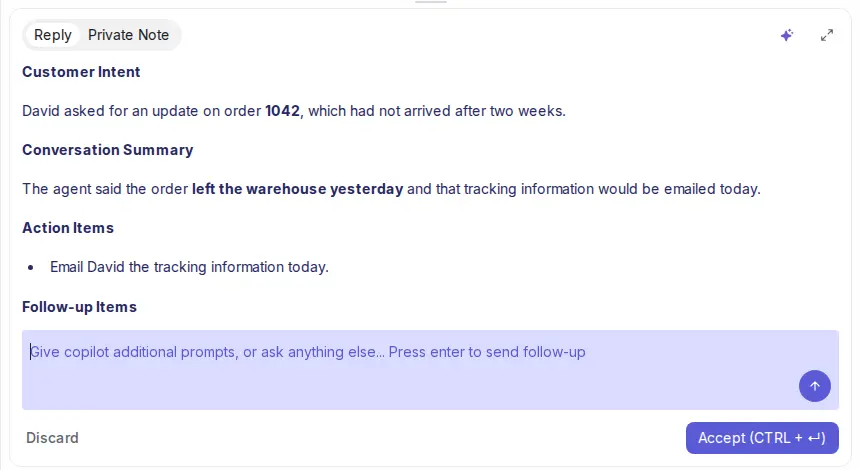
A summary from the ✨ menu, written by a model behind exe.dev's gateway.
Nothing is sent until you press **Send**. Usage is billed through your
exe.dev LLM integration. The model is `gpt-6-luna`; change it under
`/super_admin` → **Settings → Captain**.
## Let a bot answer first
Chatwoot's Captain *agent*, which answers customers on its own, is part
of the paid edition. A small bot does the simple version: it answers
website visitors from a page of instructions you write, and hands the
conversation to your team when it can't help or someone asks for a
person.
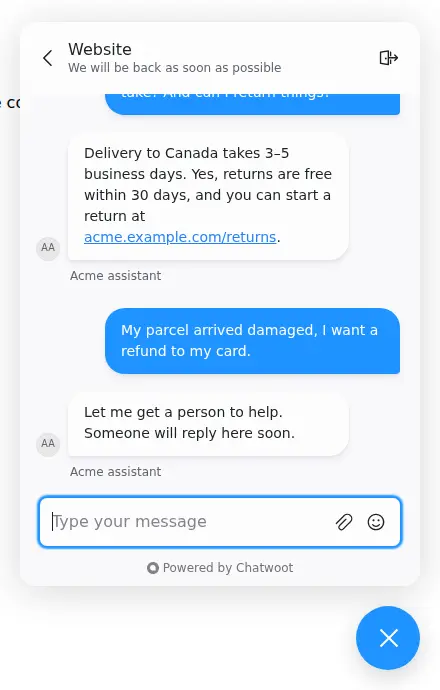
The bot answers from its instructions, then hands off a refund request.
The easy way: tell Shelley what your business is and ask it to set up
the AI bot from this page for your Website inbox. To do it yourself,
see [Add the AI bot](#add-the-ai-bot) below.
## Connect your apps
**Chatwoot's API from your servers.** The dashboard's API is on the
private port, so a script needs two keys: a
[VM token](/docs/https-tokens-for-vms) for exe.dev, and the
**Access Token** from your Chatwoot profile settings. On your computer,
make the VM token:
```bash
ssh exe.dev ssh-key generate-api-key --vm=my-chatwoot --label=support-scripts --exp=1y
```
Then, from the script's machine:
```bash
curl -s https://my-chatwoot.exe.xyz:3000/api/v1/accounts/1/conversations \
-H "X-Exedev-Authorization: Bearer $EXE_VM_TOKEN" \
-H "api_access_token: $CHATWOOT_TOKEN"
```
exe.dev checks and strips the first header; Chatwoot checks the second.
Without the VM token you get exe.dev's `401`.
**Your own app as a channel.** An **API** inbox (Settings → Inboxes →
Add Inbox → API) gives your mobile app or backend a public client API
on the main address, for creating contacts, conversations and messages:
```bash
B=https://my-chatwoot.exe.xyz/public/api/v1/inboxes/YOUR_INBOX_IDENTIFIER
curl -s -X POST $B/contacts -H 'Content-Type: application/json' -d '{"name":"Grace"}'
# {"source_id":"120e126e-...", ...}
```
Use the `source_id` to post to `$B/contacts/SOURCE_ID/conversations`
and then to that conversation's `messages`. While the VM is private, add
the `X-Exedev-Authorization` header here too.
**Automation.** Chatwoot's webhooks and the [n8n](/deploy/n8n-2)
Chatwoot node can tag, route and summarize conversations. Ask Shelley
for anything that needs code on the VM.
## Keep your conversations
Backups run nightly into `~/chatwoot-backups` and keep 14 days. Keep a
copy **off the VM** too. On your computer:
```bash
scp -r my-chatwoot.exe.xyz:chatwoot-backups .
```
Each backup holds the database, uploaded files, and `.env` with the
encryption keys, so keep them private. Don't replace `~/chatwoot/.env`:
without its keys, two-factor and channel secrets can't be decrypted.
## The nuts and bolts
These are Shelley's setup steps and your maintenance reference. Tested
with Chatwoot 4.20.0, PostgreSQL 16 (pgvector), Redis 8 and nginx 1.30 on
November 18, 2026, including a reboot and a restore.
Install by hand
### Create a VM
On your computer (pick another name if `my-chatwoot` is taken):
```bash
ssh exe.dev new --name=my-chatwoot
ssh my-chatwoot.exe.xyz
```
The remaining commands run **on the VM**, as `exedev`.
### Write the settings
Chatwoot's address, its secrets, and the mail settings. The file is
created only once, so running this again keeps your keys:
```bash
sudo systemctl enable --now docker.service
mkdir -p ~/chatwoot/postgres ~/chatwoot/redis ~/chatwoot/storage ~/chatwoot/try
mkdir -p ~/Maildir/new ~/Maildir/cur ~/Maildir/tmp
cd ~/chatwoot
if [ ! -f .env ]; then
(umask 077; cat > .env <
MAILER_INBOUND_EMAIL_DOMAIN=$(hostname).exe.xyz
RAILS_INBOUND_EMAIL_SERVICE=relay
RAILS_INBOUND_EMAIL_PASSWORD=$(openssl rand -hex 24)
EOF
)
fi
ls -l .env
```
`ls` shows `-rw-------`. Enabling `docker.service` brings the containers
back after a reboot. `FRONTEND_URL` is the VM's main address: Chatwoot
puts it in the widget script, email links and channel webhooks.
`ENABLE_ACCOUNT_SIGNUP=false` means nobody can sign up uninvited.
### Get the helpers
Three small files run beside Chatwoot:
- [smtp-relay.py](https://exe-staging.dev/deploy/chatwoot/smtp-relay.py) accepts
Chatwoot's SMTP inside Compose and hands each message to exe.dev's
[email gateway](/docs/send-email), keeping the reply thread.
- [mail-to-chatwoot.py](https://exe-staging.dev/deploy/chatwoot/mail-to-chatwoot.py)
watches `~/Maildir/new`, where [exe.dev delivers](/docs/receive-email)
the VM's mail, and posts each message to Chatwoot's inbound email
endpoint.
- [try.html](https://exe-staging.dev/deploy/chatwoot/try.html) is the widget test
page.
```bash
cd ~/chatwoot
curl -fsSL -o smtp-relay.py https://exe-staging.dev/deploy/chatwoot/smtp-relay.py
curl -fsSL -o mail-to-chatwoot.py https://exe-staging.dev/deploy/chatwoot/mail-to-chatwoot.py
curl -fsSL -o try/index.html https://exe-staging.dev/deploy/chatwoot/try.html
```
### Write the Compose file
Chatwoot's [official Compose setup](https://www.chatwoot.com/docs/self-hosted/deployment/docker)
(Rails, Sidekiq, PostgreSQL with pgvector, Redis), plus the public proxy
and the two mail helpers:
```bash
cd ~/chatwoot
cat > compose.yaml <<'EOF'
# Chatwoot: Rails (dashboard, widget, APIs) and Sidekiq (background jobs),
# PostgreSQL with pgvector, Redis, nginx for the public port, and mail
# bridges to exe.dev. Settings and secrets come from .env.
name: chatwoot
x-chatwoot: &chatwoot
image: chatwoot/chatwoot:${CHATWOOT_VERSION}
env_file: .env
restart: unless-stopped
volumes:
- ./storage:/app/storage
depends_on:
postgres:
condition: service_healthy
redis:
condition: service_started
services:
rails:
<<: *chatwoot
entrypoint: docker/entrypoints/rails.sh
command: ["bundle", "exec", "rails", "s", "-p", "3000", "-b", "0.0.0.0"]
ports:
- "3000:3000"
sidekiq:
<<: *chatwoot
command: ["bundle", "exec", "sidekiq", "-C", "config/sidekiq.yml"]
postgres:
image: pgvector/pgvector:pg16
restart: unless-stopped
environment:
POSTGRES_USER: postgres
POSTGRES_PASSWORD: ${POSTGRES_PASSWORD}
POSTGRES_DB: chatwoot_production
volumes:
- ./postgres:/var/lib/postgresql/data
healthcheck:
test: ["CMD-SHELL", "pg_isready -U postgres"]
interval: 5s
timeout: 5s
retries: 10
redis:
image: redis:8-alpine
restart: unless-stopped
command: ["sh", "-c", "redis-server --appendonly yes --requirepass \"$$REDIS_PASSWORD\""]
env_file: .env
volumes:
- ./redis:/data
public:
image: nginx:1.30-alpine
restart: unless-stopped
ports:
- "8000:80"
volumes:
- ./nginx.conf:/etc/nginx/conf.d/default.conf:ro
- ./try:/usr/share/nginx/try:ro
depends_on:
- rails
smtp-relay:
image: python:3.13-alpine
restart: unless-stopped
command: ["python3", "-u", "/smtp-relay.py"]
environment:
SMTP_RELAY_LISTEN: 0.0.0.0
volumes:
- ./smtp-relay.py:/smtp-relay.py:ro
mail-in:
image: python:3.13-alpine
restart: unless-stopped
command: ["python3", "-u", "/mail-to-chatwoot.py"]
environment:
RAILS_INBOUND_EMAIL_PASSWORD: ${RAILS_INBOUND_EMAIL_PASSWORD}
volumes:
- ./mail-to-chatwoot.py:/mail-to-chatwoot.py:ro
- ${HOME}/Maildir:/maildir
EOF
docker compose config --quiet && echo compose ok
```
Only `rails` (3000) and `public` (8000) have ports; the rest talk inside
Compose.
### Keep the dashboard off the public port
exe.dev can make one port public: 8000, the VM's main address. This nginx
configuration serves only what visitors and other services need there
and sends everything else to the private port 3000:
```bash
cd ~/chatwoot
cat > nginx.conf <<'EOF'
# Port 8000 is the port exe.dev can make public. Serve what website
# visitors and other services need (the chat widget, public APIs, help
# center, channel webhooks) and send everything else, the dashboard
# included, to the private port 3000.
map $http_upgrade $connection_upgrade {
default upgrade;
'' close;
}
server {
listen 80 default_server;
server_tokens off;
resolver 127.0.0.11 valid=10s ipv6=off;
set $chatwoot http://rails:3000;
client_max_body_size 40m;
proxy_http_version 1.1;
proxy_read_timeout 300s;
proxy_set_header Host $host;
proxy_set_header Upgrade $http_upgrade;
proxy_set_header Connection $connection_upgrade;
proxy_set_header X-Forwarded-For $http_x_forwarded_for;
proxy_set_header X-Forwarded-Host $http_x_forwarded_host;
proxy_set_header X-Forwarded-Proto $http_x_forwarded_proto;
location ~ ^/(widget$|api/v1/widget/|public/api/v1/|cable$|packs/|vite/|assets/|brand-assets/|audio/|hc/|survey/responses/|rails/active_storage/|webhooks/|health$|robots\.txt$|favicon) {
# Check the raw path too, so encoded tricks such as
# /hc/..%2Fapp can't reach anything else.
if ($request_uri !~ ^/(widget$|widget\?|api/v1/widget/|public/api/v1/|cable$|cable\?|packs/|vite/|assets/|brand-assets/|audio/|hc/|survey/responses/|rails/active_storage/|webhooks/|health$|robots\.txt$|favicon)) {
return 404;
}
proxy_pass $chatwoot;
}
# The widget test page.
location /try/ {
alias /usr/share/nginx/try/;
}
location / {
return 302 https://$host:3000$request_uri;
}
}
EOF
```
`/cable` is the WebSocket that carries live replies to the widget; the
dashboard uses its own on port 3000. Both pass through exe.dev's proxy
unchanged.
### Start Chatwoot
Prepare the database, then start everything. The first pull is about
1.5 GB and takes a few minutes:
```bash
cd ~/chatwoot
docker compose pull -q
docker compose up -d postgres redis
docker compose run --rm rails bundle exec rails db:chatwoot_prepare 2>&1 | tail -n 3
docker compose up -d
until curl -fs http://localhost:3000/api; do sleep 5; done; echo
```
Expect `{"version":"4.20.0",...,"queue_services":"ok","data_services":"ok",...}`.
Check that the public port serves the widget and nothing private:
```bash
for p in /packs/js/sdk.js /health /try/ /app/login /super_admin /api/v1/profile; do
printf '%-18s %s\n' "$p" "$(curl -s -o /dev/null -w '%{http_code}' http://localhost:8000$p)"
done
```
The first three answer `200`; the rest `302` (to port 3000).
### Connect the AI features
Point Chatwoot's Captain settings at exe.dev's LLM gateway. Chatwoot
wants a key, but the gateway ignores it, so any text will do:
```bash
cd ~/chatwoot
docker compose exec -T rails bundle exec rails runner '
{ "CAPTAIN_OPEN_AI_API_KEY" => "exe-llm-gateway",
"CAPTAIN_OPEN_AI_ENDPOINT" => "https://llm.int.exe.xyz" }.each do |name, value|
config = InstallationConfig.find_or_initialize_by(name: name)
config.value = value
config.save!
end
puts "Captain endpoint: " + InstallationConfig.find_by(name: "CAPTAIN_OPEN_AI_ENDPOINT").value' 2>/dev/null
docker compose exec -T rails wget -qO- https://llm.int.exe.xyz/v1/models | head -c 80; echo
```
Expect `Captain endpoint: https://llm.int.exe.xyz` and the start of a
model list.
### Set up nightly backups
This script saves the database, uploaded files, `.env` and the
configuration in one private archive, and keeps the 14 newest:
```bash
cat > ~/chatwoot/backup.sh <<'EOF'
#!/usr/bin/env bash
# Back up Chatwoot into one tarball: a PostgreSQL dump, the uploaded
# files (storage/), .env with its secrets, and the configuration.
set -euo pipefail
umask 077
cd "$(dirname "$0")"
dest="$HOME/chatwoot-backups"
mkdir -p "$dest"
work=$(mktemp -d "$dest/.tmp-XXXXXX")
trap 'rm -rf "$work"' EXIT
docker compose exec -T postgres pg_dump -U postgres -d chatwoot_production --format=custom > "$work/chatwoot.dump"
cp -a .env compose.yaml nginx.conf backup.sh smtp-relay.py mail-to-chatwoot.py try storage "$work/"
[ -d bot ] && cp -a bot "$work/"
out="$dest/chatwoot-$(date -u +%Y%m%d-%H%M%S).tar.gz"
tar -czf "$out.part" -C "$work" .
mv "$out.part" "$out"
# Keep the 14 newest backups.
ls -1t "$dest"/chatwoot-*.tar.gz | tail -n +15 | xargs -r rm --
echo "$out"
EOF
chmod +x ~/chatwoot/backup.sh
```
Schedule it, then take a first backup:
```bash
sudo tee /etc/systemd/system/chatwoot-backup.service >/dev/null </dev/null <<'EOF'
[Unit]
Description=Back up Chatwoot every night
[Timer]
OnCalendar=*-*-* 03:30:00
RandomizedDelaySec=30m
Persistent=true
[Install]
WantedBy=timers.target
EOF
sudo systemctl daemon-reload
sudo systemctl enable --now chatwoot-backup.timer
sudo systemctl start chatwoot-backup.service
systemctl list-timers chatwoot-backup.timer --no-pager
ls -lh ~/chatwoot-backups
```
The timer shows a next run and the directory holds a tarball. For
failures: `journalctl -u chatwoot-backup.service`.
### Test a backup
Restore the newest backup into a **scratch stack**, not the running one:
```bash
latest=$(ls -1t ~/chatwoot-backups/chatwoot-*.tar.gz | head -n 1)
mkdir -p /tmp/chatwoot-restore-test/postgres
tar -xzf "$latest" -C /tmp/chatwoot-restore-test
cd /tmp/chatwoot-restore-test
docker compose -p chatwoot-restore-test up -d --wait postgres
docker compose -p chatwoot-restore-test exec -T postgres pg_restore -U postgres -d chatwoot_production --no-owner --exit-on-error < chatwoot.dump
docker compose -p chatwoot-restore-test exec -T postgres psql -U postgres -d chatwoot_production -tAc \
"select 'installation configs: ' || count(*) from installation_configs union all select 'conversations: ' || count(*) from conversations"
```
Expect over a hundred installation configs, and your conversations once
there are some. Remove only this scratch copy afterwards:
```bash
cd /tmp/chatwoot-restore-test && docker compose -p chatwoot-restore-test down
cd ~ && sudo rm -rf /tmp/chatwoot-restore-test
```
Installation done. Leave the admin account, inboxes and sharing to the
owner; continue with [Sign in](#sign-in).
Add the AI bot
[bot.py](https://exe-staging.dev/deploy/chatwoot/bot.py) is a Chatwoot
[agent bot](https://www.chatwoot.com/hc/user-guide/articles/1677497472-how-to-use-agent-bots):
Chatwoot posts each new message to it, and it answers through exe.dev's
LLM gateway while the conversation is still **pending** (the bot's).
When it can't answer from your instructions, or the customer asks for a
person, it says so and marks the conversation **open** for your team. It
remembers each conversation in memory, so a restart only forgets the
context of chats in progress.
On the VM, fetch the bot and write its instructions (yours, not Acme's):
```bash
mkdir -p ~/chatwoot/bot && cd ~/chatwoot/bot
curl -fsSL -o bot.py https://exe-staging.dev/deploy/chatwoot/bot.py
cat > instructions.md <<'EOF'
You answer questions on the support chat of Acme, a small online shop.
- We ship to the US, Canada, and the EU. Delivery takes 3-5 business days.
- Returns are free within 30 days; customers start one at acme.example.com/returns.
- Opening hours for human support: Monday to Friday, 9:00-17:00 UTC.
EOF
```
In the dashboard, go to **Settings → Bots → Add Bot**: name it (visitors
see the name), set the webhook URL to `http://bot.internal:5005/`, and
click **Create Bot**. Chatwoot shows the bot's **access token** and
**webhook secret**; copy both. Then under **Settings → Inboxes →** your
website inbox **→ Bot Configuration**, pick the bot and click **Update**.
On the VM, add both to `.env` (replace the placeholders), let Chatwoot
call a bot inside Compose, and add the bot's container:
```bash
cd ~/chatwoot
cat >> .env <<'EOF'
CHATWOOT_BOT_TOKEN=paste-the-access-token
CHATWOOT_BOT_SECRET=paste-the-webhook-secret
# Let Chatwoot deliver webhooks to the bot container's private address.
SAFE_FETCH_ALLOW_PRIVATE_NETWORK=true
EOF
nano .env
cat >> compose.yaml <<'EOF'
bot:
image: python:3.13-alpine
restart: unless-stopped
command: ["python3", "-u", "/bot/bot.py"]
environment:
CHATWOOT_BOT_TOKEN: ${CHATWOOT_BOT_TOKEN}
CHATWOOT_BOT_SECRET: ${CHATWOOT_BOT_SECRET}
LLM_MODEL: gpt-5.4-mini
volumes:
- ./bot:/bot:ro
networks:
default:
# Chatwoot's bot form wants a host name with a dot in it.
aliases: [bot.internal]
EOF
docker compose up -d
docker compose logs bot
```
The log says `chatwoot bot on :5005`. Ask a question on the
[test page](#put-a-chat-bubble-on-a-page): the bot answers within a few
seconds and the conversation waits under **Pending** in the dashboard;
ask for a person and it moves to **Open**. Edit `bot/instructions.md` any
time; the bot rereads it for every answer. `SAFE_FETCH_ALLOW_PRIVATE_NETWORK`
also lets Chatwoot's webhooks and API inboxes call private addresses, so
only admins should be able to set those up.
Back up and restore
On the VM, `~/chatwoot/backup.sh` makes an extra backup and prints its
path. Each archive has the database, uploads and encryption keys;
**restore them together**.
### Restore
Make a new VM as in [Create a VM](#create-a-vm) (or use the old one),
then copy your backup over. On your computer:
```bash
scp chatwoot-20261118-033012.tar.gz my-chatwoot.exe.xyz:
```
Use your backup's actual filename here and below. The rest runs **on the
VM**. If Chatwoot already runs there, stop it and keep its directory
aside first:
```bash
cd ~/chatwoot && docker compose down
mv ~/chatwoot ~/chatwoot.before-restore
```
Unpack the backup, set this VM's address, and load the database before
starting Chatwoot:
```bash
sudo systemctl enable --now docker.service
mkdir -p ~/chatwoot/postgres ~/chatwoot/redis ~/Maildir/new ~/Maildir/cur ~/Maildir/tmp
tar -xzf ~/chatwoot-20261118-033012.tar.gz -C ~/chatwoot
cd ~/chatwoot
sed -i "s/[a-z0-9-]*\.exe\.xyz/$(hostname).exe.xyz/" .env
docker compose up -d --wait postgres
docker compose exec -T postgres pg_restore -U postgres -d chatwoot_production --no-owner --exit-on-error < chatwoot.dump
docker compose up -d
until curl -fs http://localhost:3000/api; do sleep 5; done; echo
```
Sign in on port 3000 and check your conversations. On a new VM, also
recreate the backup timer, turn email and public sharing back on if you
used them, and update the widget script on your website if the VM's name
changed. Keep `~/chatwoot.before-restore` until you're happy.
Update Chatwoot
Pick a version from Chatwoot's
[releases](https://github.com/chatwoot/chatwoot/releases) and read its
notes. On the VM, back up, set **only `CHATWOOT_VERSION`** in `.env` (put
your version in place of `v4.20.0`), then pull, migrate and restart:
```bash
cd ~/chatwoot
./backup.sh
sed -i 's/^CHATWOOT_VERSION=.*/CHATWOOT_VERSION=v4.20.0/' .env
docker compose pull rails sidekiq
docker compose run --rm rails bundle exec rails db:chatwoot_prepare 2>&1 | tail -n 3
docker compose up -d
until curl -fs http://localhost:3000/api; do sleep 5; done; echo
```
The reported version is the new one. To roll back, [restore the
backup](#restore): an older image won't undo database migrations.
Something not working?
On the VM:
```bash
cd ~/chatwoot
docker compose ps
docker compose logs --tail=100 rails sidekiq
```
- **The main URL redirects to port 3000:** expected for anything but the
widget and public APIs. Open the dashboard at
`https://my-chatwoot.exe.xyz:3000/`.
- **The widget doesn't load on your website:** the VM must be public
(`ssh exe.dev share set-public my-chatwoot`), and the script's
`BASE_URL` must be `https://my-chatwoot.exe.xyz` without `:3000`.
- **Email doesn't arrive:** check `ssh exe.dev share receive-email
my-chatwoot` says on, and `docker compose logs mail-in`. Mail Chatwoot
refused lands in `~/Maildir/failed`; Chatwoot accepts mail only for an
Email inbox's address.
- **A reply email isn't delivered:** `docker compose logs smtp-relay`
shows exe.dev's reason. The gateway sends only to the people listed
under [Answer email](#answer-email).
- **✨ AI features fail:** `docker compose logs rails | grep -i captain`,
and rerun [Connect the AI features](#connect-the-ai-features).
- **The bot stays silent:** `docker compose logs bot sidekiq`. Check the
bot is chosen in the inbox's Bot Configuration and that `.env` has
`SAFE_FETCH_ALLOW_PRIVATE_NETWORK=true` (then `docker compose up -d`).
- **Down after a reboot:** `sudo systemctl enable --now docker.service`.
- **`~/Maildir` owned by root:** Docker created it before you did;
`sudo chown -R exedev:exedev ~/Maildir`.
## Frequently asked questions
### Is self-hosted Chatwoot free?
The Community Edition is MIT-licensed and free, with no limit on agents or conversations. You pay for the VM; in our test the whole stack used about 600 MB of memory, which fits the smallest [exe.dev plan](https://exe.dev/pricing). Chatwoot's paid self-hosted plans add features such as the Captain AI agent, SLAs and audit logs.
### Does the AI work without an OpenAI key?
Yes. Chatwoot's AI reply tools (suggest a reply, summarize, rewrite) call exe.dev's [LLM gateway](/docs/integrations-llm), which needs no key on the VM. The autonomous Captain agent that answers customers from your docs is a paid feature; this page includes a small [AI bot](#let-a-bot-answer-first) you can run instead.
### Can customers email support@ my own domain?
Not through exe.dev's email: it receives mail only for addresses at your VM's name. Add an Email inbox in Chatwoot that signs in to your own mail provider with IMAP and SMTP, and Chatwoot reads and sends that mailbox's mail itself.
### Can I keep the chat widget private?
For testing, yes: while the VM is private the widget works for anyone signed in to exe.dev with access to it. Your website's visitors can't sign in, so the widget needs the VM's main address public. That address serves only the widget, public APIs and webhooks; the dashboard stays private on port 3000.
### Which other channels work?
Anything Chatwoot connects to over the internet: Telegram, WhatsApp, Facebook, Instagram, SMS providers and so on. They call Chatwoot's `/webhooks/` addresses, so make the VM public first, and give Chatwoot the channel's own token. We tested the website, email and API channels.
### Can I use my own domain for the widget?
Yes. Ask Shelley to connect a [custom domain](/docs/cnames) to the VM's main address and change `FRONTEND_URL` in `~/chatwoot/.env` to match. The dashboard can stay at its exe.xyz address on port 3000.
## Related
- [Self-host n8n](https://exe-staging.dev/deploy/n8n-2.md): Connect your apps. Let the boring bits run themselves.
- [Self-host Metabase](https://exe-staging.dev/deploy/metabase.md): Charts for the whole team. Questions answered before the meeting.
- [Self-host Open WebUI](https://exe-staging.dev/deploy/open-webui.md): A private ChatGPT for you and your team. No API keys.
- [Cal.diy](https://exe-staging.dev/deploy/cal-diy.md): Open-source scheduling app on exe.dev
- [Self-host Uptime Kuma](https://exe-staging.dev/deploy/uptime-kuma.md): A little lookout for your websites. Green bars encouraged.
- [Deploy a Rails app](https://exe-staging.dev/deploy/rails.md): Your Rails app on a server of its own. git push, and it's live.